Friday, 8 March 2013

What's new in 7.7.13 (March 8)


New Features:


1. [Pallet Docket No.] and [Pallet Quantity] added in CDN Header.


2. [Pallet Monitor] added in Warehouse Parameters. When this option set to YES, Pallet ID will be inserted during posting a Receive and it will be deleted during posting an Issue if the pallet is being fully applied.


3. [Pallet Lookup filtered by Customer] added in Warehouse Parameters. When this option set to YES, system will filter out the pallet list by specified customer whenever lookup a pallet in WMS.


4. [Delete Unused Pallet] added in Warehouse Parameters. When this option set to YES, system will delete unused pallet if no transaction found in ASN pallet and Receive detail.


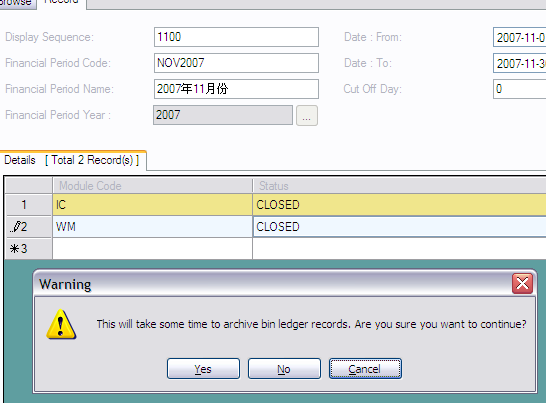
5. [Allow Bin Ledger Archive] in Warehouse Parameters. When this option set to YES, system will archive bin ledger while changing the financial calendar period to CLOSED status.


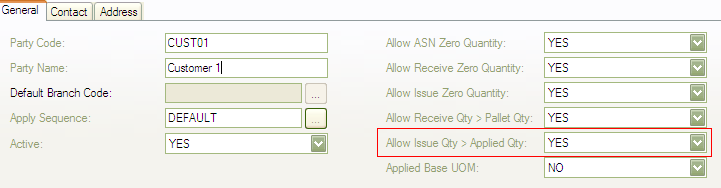
6. [Allow Issue Zero Quantity] added in Customer Profile. When this option set to YES, system will allow zero quantity inserted into Issue detail.

7. [Unit Price] and [Unit Cost] added in Customer Item. 


8. [Total Distinct Pallet Count] added in various transaction summary screen likes Receive, Order, Issue, Transfer, Ownership Transfer and Bin Ledger.


9. Added Shortcut key to Pallet Quantity (Ctrl+Shift+J) and Pallet Transfer (Ctrl+Shift+H).


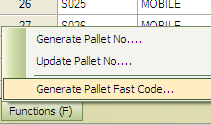
10. Added function of  [Generate Pallet Fast Code] in Pallet profile.

11. During release a Receive document, system will prompt user if the pallet is being used in another transaction.


Fixed Bugs:


1. Error when validating item variant in Bin Replenishment setting.

2. Error when validating item variant in Transfer Wizard.

3. Error of unable to select relevant bin code in Warehouse: To at Transfer.

4. Error of generating filter criteria for columns [Bin Code Criteria] / [Pallet Type Criteria] / [Pallet No. Criteria] in Order, Issue and Ownership Transfer.

5. Error of parameters will be duplicated during overwriting a user defined view.

Wednesday, 2 January 2013

What's new in 7.6.13 (January 2)


New Features:


1. In order to facilitate daily WMS operation, Xtreme has introduced several mobile applications which are [Pallet Transfer], [Pallet Quantity], [Pallet Info], [Distribution Picking], [General Picking] and [Full Pallet Picking] by using Panasonic ToughBook. 

(a) Before using those mobile applications, user is required to insert Mobile Device parameters in Xtreme WMS Warehouse Parameters.


(b) User need to login before using Xtreme Mobile Application.


(c) Below is the main menu after login to the application.


(d) [Pallet Transfer] is cater for put away purpose by transferring a pallet to specified bin location. 


(e) [Pallet Quantity] is solely for user to insert quantity per layer, layer and extra quantity of a pallet and system will calculate the total quantity automatically. Both data captured in [Pallet Transfer] and [Pallet Quantity] will then insert into intermediate table in pre-defined interval and a windows service will eventually imports and updates those records into Xtreme's database.


(f) [Pallet Info] is an enquiry screen to check the bin location and quantity of a pallet.


(g) [Distribution Picking], [General Picking] and [Full Pallet Picking] are cater for users to confirm the pallet and quantity they picked and those entries will be updated into Xtreme's database. Users are required to export the document (Export in Issue Header for Distribution Picking and Export in Transfer Header for General and Full Pallet Picking) in Xtreme WMS before proceed to do picking using mobile application.


(h) Exported document and detail will load into [Distribution Picking], [General Picking] and [Full Pallet Picking] automatically.

[Distribution Picking]


[General Picking]


[Full Pallet Picking]


(i) By clicking [Add] button in [Distribution Picking] , the system will prompt up a screen for the user to insert the picked pallet no. and quantity. The entry can be found at the [Pallet] tab once saved.

[Distribution Picking]


(j) When click on [Pick] button in [General Picking] and [Full Pallet Picking], the system will prompt up a screen for the user to insert the pallet quantity to ensure the right pallet is being picked. The only difference of these two picking mobile applications is that [General Picking] only requires Total Quantity whereas [Full Pallet Picking] requires more information likes Quantity Per Layer, Layer and Extra Quantity.

[General Picking]

[Full Pallet Picking]

(h) Those inserted records will then upload to Xtreme's database in timely basic and update the picking information accordingly.


Friday, 14 September 2012

What's new in 7.4.12 (August 22)


New Features:


1. Now Xtreme WMS allows users to set the Base UOM of an item and specify larger UOMs that are based on it. Therefore, users can monitor inventory balances and inventory movement base on different UOM of an item. There are several settings need to be changed before applying Base UOM in various transactions. Please note that Base UOM is configurable at item basis. By default, all items added are not applying Base UOM unless users activate them manually.

(a) In order to activate Base UOM of a particular item, users firstly have to set [Applied Base UOM] in Customer Profile to "YES".


(b) Secondly, users are required to tick on the check box and select one of the UOM as Base UOM.


(c) While assigning a customer to this "Base UOM enabled" item, please ensure that the assigned customer's Base UOM is activated; otherwise it will prompt error below:


(d) If users want to check inventory balances and inventory movements in other UOM, they have to specify the desired UOM in [Item Profile] > [Record] > [Default] > [UOM Code: Receive] or [UOM Code: Issue].


(e) System will calculate the converted quantity for other larger UOM base on record added in [Item UOM Conversion].


(f) After the setting of Base UOM has been done, users will find out there are two new columns appears in transaction modules which are [Base UOM Code] and [Base UOM Quantity] after selected a customer which is "Base UOM enabled".


(g) As an example in Receive module, whenever users insert an item with its Receive UOM "CTN", system will automatically look for its Base UOM and store its Base UOM Quantity after conversion. In case below, Base UOM Quantity = 13 * 6 = 78. This logic same applied to other modules such as ASN, Order, Issue, Transfer and Ownership Transfer.


(h) To monitor Inventory Balances and Inventory Movement in different UOM, please select an option in new added field [Show UOM].


(i) By default, system will retrieve inventory balances with default UOM.


(j) By selecting "Receive UOM" in the [Show UOM] field, system will re-calculate the quantity base on the specified Item UOM Conversion.


Fixed Bugs:


1. Error occurs when retrieving back-dated inventory balances.

Tuesday, 31 July 2012

Using RFID to track pallet movement

We have been doing research in using RFID to track pallet movement.

The objective of this project is to automatically track the movement of pallet in real-time.

We embedded 2 RFID inlay into each plastic pallet, we also installed RFID reader (Impinj) by the entrance of each room. The moment a pallet enter the room, the RFID reader read the ID of the pallet and "tells" the system it has entered this room in real-time via local area network.


IGLO RFID Test 2012-07-31 from Teng Yong on Vimeo.

Thursday, 7 June 2012

What's new in 7.3.12 (June 7)


New Features:


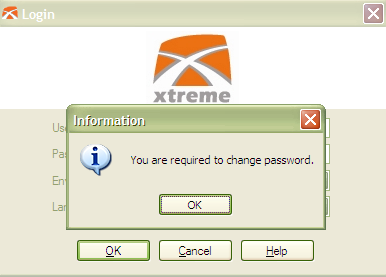
1. Users are enforced to change password after certain configurable interval and system applies Password Policy to enhance login security.


a) Interval setting of changing password can be found under Warehouse Parameters > General.


b) Whenever the date that users last updated password is greater than the interval (in above case, it's 90 days) compared to today's date, users will be requested to change password during their next login.


c) Password policy is applied in this latest version. The requirements are:
    - Password must contain at least one upper case alphabet, lower case alphabet and number in any position.
    - Password's length must between 5 to 20 characters.
   Example of acceptable password: abcDEF123 / 77aA88


2. Added feature to update information of Advanced Shipping Note (ASN) header in batch.

a) Feature can be found at ASN Browse > Function.


b) Fields that available for updating as shown below:


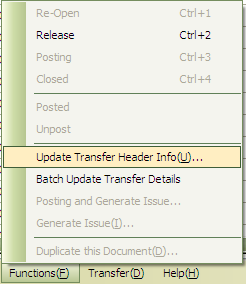
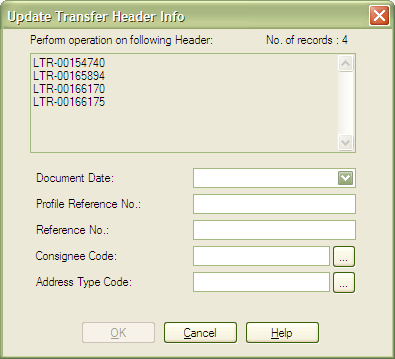
3. Added feature to update information of Transfer header in batch.

a) Feature can be found at Transfer Browse > Function


b) Fields that available for updating as shown below:


Fixed Bugs:


1. User preference cannot be saved in Order and Issue Apply module.

2. Error in show/hide columns in DataGridView.
3. Interface error when adding item detail in Receive, Order and Issue module.

Thursday, 14 April 2011

What's new in 7.3.11 (Apr 12 / Aug 23 / Sep 28)


New Features:


1. Added User Defined Fields in Details.

a) Firstly, users have to define customized field(s) in setting. (Setting > Data > User Defined Fields)


b) There is 7 columns in user defined fields settting.
i) Code
ii) Name
iii) Data Type
iv) Length
v) Mandatory (System will check whether data has been inserted for this field if Mandatory set to YES)
vi) Post To Bin Ledger (System will only recognize this field as filter criteria while doing allocation automatically or manually if set to YES)
vii) Description

c) If Data Type is Lookup, user have to setup Lookup Option.


d) After setup user defined field, users have to assign it into Customer Profile > User Defined Fields.


e) User defined field will only show in Detail for those assigned Customers.


f) Besides, user defined field is searchable in Search Wizard.


2. Archive Bin Ledgers for those calendar financial period code has been closed.

a) For the first time archive, user has to run the individual Archive Bin Ledger program.


b) Afterward, when users try to change the status of calendar financial period to CLOSED, system will prompt a confirmation dialog. If users confirm to proceed, system will move relevant bin ledger(s) to archived table.


c) And vice versa, when users reopen the calendar financial period, system will move relevant bin ledgers from archived table back to its origin.


3. Preview User Defined Report when mouse hover on Report Treenodes and it allow users to set visibility of preview depend on their account. For closing the preview image, user can just click on the image itself.


4. Added UI of [Add Detail] in Order and Issue detail module to help users insert detail with splitted quantity according to UOM Conversion Factor.

a) in EDIT mode, click on Add detail in tool strip menu at right top corner.


b) In below [Add Detail] screen, quantity will be split into different UOM based on UOM Conversion factor. Inserted UOM will be served as the lowest level and split the inserted quantity upwards according to the UOM hierarchy of the specified item.


c) Finally it will be split into 5 lines with different UOM for this example. Same applied to the Issue module.


5. Added [Container Details] tab in Receive Module to allow users insert container details into WMS for tracking purpose.


6. Added notification of pallet with multiple item SKU during posted in Order and Issue.