Monday, 22 June 2015

What's new in 8.5.15 (June 22)


New Features:


1. Added [Barcode] in Item Profile

Added [Barcode] tab in Item Profile to allow users insert various barcode for tracking purpose. (Please refer to Image 1.a)

Image 1.a

2. [Barcode] renamed as [Reference] in Item Profile

Field name of [Barcode] in Item Profile, Item Profile Wizard and Import Item has been renamed as [Reference]. (Please refer to Image 2.a)

Image 2.a

3. Added [Receive Wizard] at Task Sidebar

A new wizard has been added to improve the efficiency of large amounts of data input by using scanner. This function can be found at [Wizard] in Task Sidebar's inbound category. (Please refer to Image 3.a)

Image 3.a

WMS will prompt an input screen that required user to insert Receive document no before proceed to next screen. (Please refer to Image 3.b)

Image 3.b

After WMS verified the existence of the inserted receive document no., it will show the receive details input screen. Currently the required fields are barcode, lot no. and quantity. (Please refer to Image 3.c)

Image 3.c

User can check the correctness of inserted data at [Summary] screen. They can delete the wrong entry by selecting it and click on [Delete] button and then print the scan data summary for further usage. (Please refer to Image 3.d)

Image 3.d

4. Added [Validate Scan Data] at Receive Details

After insert a large amount of data through Receive Wizard, now user has to verify and import the scan data into Receive details. This function can be found at [Validate Scan Data] in Receive detail. (Please refer to Image 4.a)

Image 4.a

WMS will match with the relevant Item SKU based on the inserted barcode when validation undergoes. If there is any error found, users can still import record partially and rectify the error record afterwards. (Please refer to Image 4.b)

Image 4.b

5. Added [Put Away to Existing Bin] in Receive Details

A feature to help user to put away new receive detail at the existing bin location can now be found at [Put Away to Existing Bin] at Receive details. (Please refer to Image 5.a and Image 5.b)

Image 5.a

WMS will locate a list of existing bin and pallet by matching the selected item SKU and the bin ledger. User has to decide the put away bin location and then click on the [Update] button to finish the task. (Please refer to Image 5.b)

Image 5.b

6. Added several data validation in Receive and Issue module

Several new data validation has been added in both Receive and Issue module to prevent insertion of invalid data due to carelessness. The system will prompt notification during release or post a document when the scenario below occurs (Please refer to Image 6.a): 

[Receive module]
(a) Difference between Shipment Time and Unloading Start is beyond 10 days.
(b) Difference between Unloading Start and Unloading End is beyond 1 day.
(c) Difference between Shipment Time and Pull Out Time is beyond 10 days.

[Issue module]
(a) Difference between Transport Arrival Time and Transport Departure Time is beyond 10 days.
(b) Difference between Start Loading Time and Pull Out Time is beyond 10 days.

Image 6.a


Thursday, 7 May 2015

What's new in 8.5.15 (May 7)


New Features:


1. Added Container Details in Issue

Added [Container Details] tab in Issue Module to allow users insert container details into WMS for tracking purpose. (Please refer to Image 1.a)

Image 1.a

2. Added [Halal Certification Body] in Settings

Added [Halal Certification Body] setting for record management purpose. (Please refer to Image 2.a)

Image 2.a

3. Added [Item Halal Certification] in Item Profile

Added [Item Halal Certification] in Item Profile for record management purpose. (Please refer to Image 3.a)

Image 3.a


Thursday, 2 April 2015

What's new in 8.4.15 (April 2)


New Features:


1. Added access log of Customized Report and User-Defined Enquiry (UDE)

System administrator can keep track on the users access information of customized reports and user-defined enquiry (UDE). (Please refer to Image 1.a)

Image 1.a

2.  Amended Pallet Label where Bar-code font has been changed to [Code 128]

Thursday, 26 March 2015

What's new in 8.4.15 (March 26)


New Features:


1. Address Type Lookup changes address information

When users lookup address type in Order and Issue module, system will retrieve and show relevant address information such as address line, state, city, country, zip code and etc. (Please refer to Image 1.a)

Image 1.a

2. Added column [Total Quantity] in ASN report

Total Quantity is now available in Advanced Shipping Note report. (Please refer to Image 2.a)

Image 2.a

3. Export data from Data Grid View to file

The option of [Include column header] now is checked by default whenever users want to export information from data grid view to file.

Image 3.a

4. Added column [Remark] in Import ASN

A new column [Remark] has been added in Import ASN.


Friday, 13 February 2015

Customer Experience Optimization: How to Prevent Warehouse & Inventory Errors with Cloud Management

Customer experience can make or break your ecommerce business.

In fact, 89% of consumers have stopped doing business with an ecommerce company after a bad experience, and a customer is 4X more likely to buy from a competitor if the bad experience was service-related rather than price-related.

What’s more is that consumers are 2X more likely to share a bad experience online than they are a positive one. To account for that negative experience, it would take 12 positive reviews to convince readers that the one issue was resolved.

Continue to read from Big Commerce Blog (http://blog.bigcommerce.com/customer-experience-optimization-inventory/)

Friday, 23 January 2015

What's new in 8.4.15 (January 23)


New Features:


1. Added Bar code in Dispatch Note Summary

In order to facilitate the warehouse operation, bar code concept has been implemented in Dispatch Note Summary report. WMS encodes the Document No. into bar code with Code 128 symbology. (Please refer to Image 1.a)

Image 1.a

2. Added new report [Goods Return Note] in Receive

3. Added new report [Receive Adjustment] in Receive

4. Added new report [Supplier Return Note] in Issue

5. Added new report [Issue Adjustment] in Issue

6. New column [Consignee Group Name] in Lot No. Costing's Minimum Selling Price

A new column [Consignee Group Name] has been added in Lot No. Costing's minimum selling price. (Refer to Image 6.a)

Image 6.a

Tuesday, 6 January 2015

What's new in 8.3.15 (January 15)


New Features:


1. Attachment in main modules

A brand new attachment feature has been introduced in this latest version of WMS. Users can attach any type of file (ex: PDF, Image, Word Document, etc.) in WMS modules.

(a) First of all, users need to define the attachment folder for each module in Warehouse Parameters. (Refer to Image 1.a)

Image 1.a

(b) A new tab [Attachment] has been added in each module. (Refer to Image 1.b) If the selected record already has an attachment, the system will show an icon as an indication. (Refer to Image 1.c)

Image 1.b

Image 1.c

(c) Users can select files to attach in [EDIT] mode by just clicking on the attachment button. (Refer to Image 1.d)

Image 1.d

(d) Once the selection being done, the system will copy the attached file to the destination folder that pre-defined in Warehouse Parameters. At the meanwhile, the attached file will appear in the attachment tab. (Refer to Image 1.e)

Image 1.e

2. Serial No. Input Wizard

(a) A wizard has been added in Receive and Issue module to facilitate the process of using Serial No. in incoming and outgoing stock. This new wizard can be found at Receive Detail functions and Issue Apply functions respectively. (Refer to Image 2.a and Image 2.b)

Image 2.a

Image 2.b

(b) For Receive module,users just need to select an item and insert a series of serial no. in the wizard. It will generate receive details according to those inserted serial no. and each of them has 1 in quantity. (Refer Image 2.c and Image 2.d)

Image 2.c

Image 2.d

(c) For Issue module, users can manually allocate stock with desired serial no. by using the wizard. WMS will check the stock availability based on those serial no. automatically before apply stock. (Refer to Image 2.e and Image 2.f)

Image 2.e

Image 2.f

3. New column [Palletized] in Item Profile and Wizard

A new column [Palletized] has been added in Item Profile and Wizard. If its value set as [YES], the require of pallet type item setting is compulsory. (Refer to Image 3.a and Image 3.b)

Image 3.a

Image 3.b

4. New Zone Profile setting

Zone profile has been added in the setting. It mainly caters for categorizing consignee and sender in a different zone. (Refer to Image 4.a)

Image 4.a

5. Consignee Profile has a new facelift

(a) Consignee profile user interface has been re-designed to enhance record management experience. Consignee record is now searchable through various filter criteria such as code, name, zone, group and etc. Besides, it consolidates consignee address and consignee zone into one to facilitate the input process. (Refer to Image 5.a and Image 5.b)

Image 5.a

Image 5.b

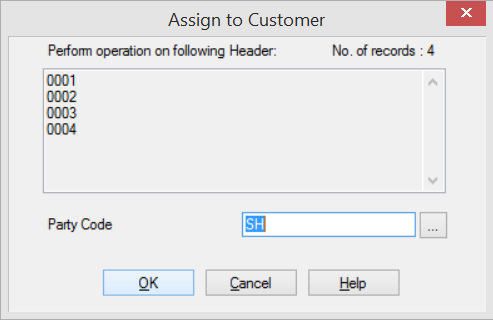
(b) Users can assign consignee to the customer by using the new function [Assign to Customer] at the right top corner of Consignee Profile. It will prompt a dialogue box for users to choose customer code. (Refer to Image 5.c and Image 5.d)

Image 5.c

Image 5.d

6. New Sender Profile setting

Sender profile has been added in the setting. It maintains sender basic information and also includes address and zone. (Refer to Image 6.a)

Image 6.a

7. New Salesperson Profile setting

Salesperson profile has been added in setting. (Refer to Image 7.a)

Image 7.a

8. New column [Term] in Customer Consignee

A new column [Term] has been added in Customer Consignee. (Refer to Image 8.a)

Image 8.a


9. New Report for Advanced Shipping Note

A new report has been added in Advanced Shipping Note. (Refer to Image 9.a)

Image 9.a


10. Consignment module

A new module has been added to maintain the consignment record.

11. Lot No. Costing module

A new module has been added to keep track the costing and selling price of products according to Lot No.